PC Settings and Performance: Evidence-First Setup
Set up Beast of Reincarnation on PC without invented benchmark claims: use the official Steam targets, storage requirements, upscaling notes, patch status and a reproducible troubleshooting process.
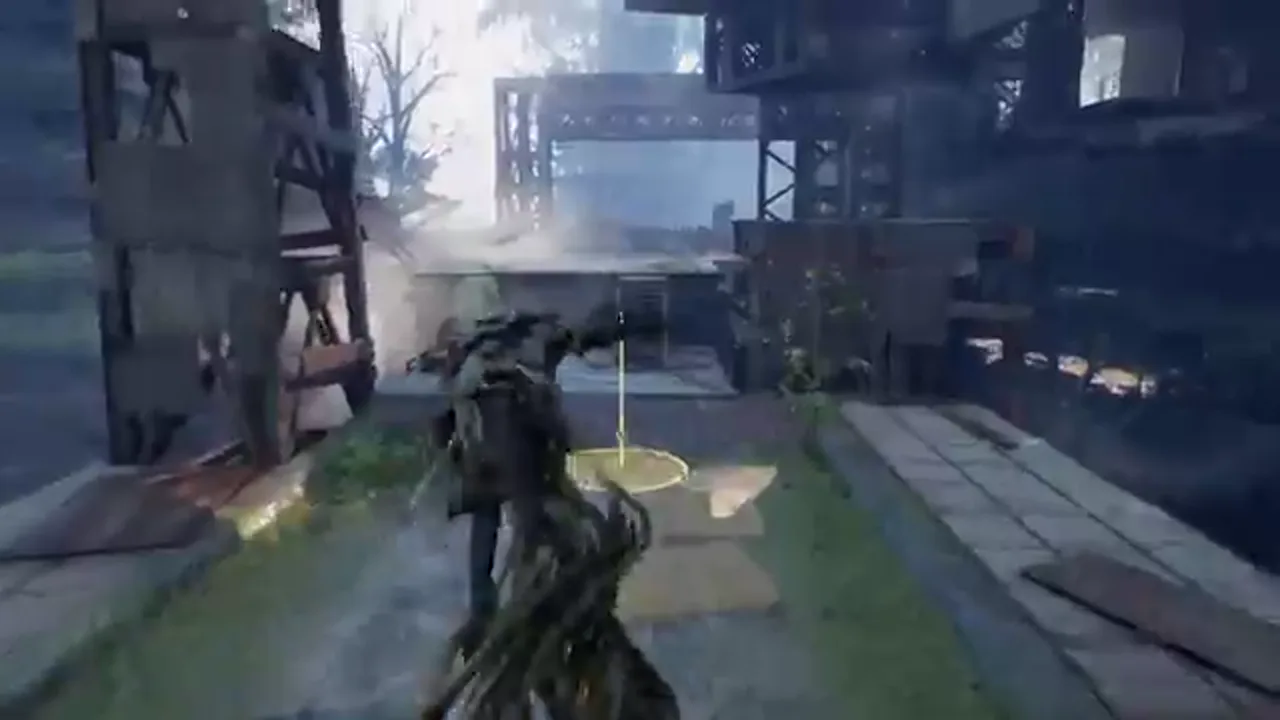
A good PC setup for Beast of Reincarnation starts with the target published by Steam, not with a copied “best settings” list. Steam’s official table states 16 GB RAM, 45 GB of SSD storage and Windows 10/11 for both its minimum and recommended targets, but the GPU, CPU and expected image/performance targets differ. The minimum is explicitly Low at 1080p and 40 fps with DLSS or FSR1 in Performance mode. The recommended target is Medium at 1080p and 60 fps with DLSS or FSR3.
Those details are more useful than a single pass/fail label. They tell you the configuration under which the publisher frames each target. They do not promise the same experience in every area, after every driver update or on every laptop carrying a similar-looking GPU name. This guide turns the official data into a careful setup process and separates live changes from items Fictions says are only planned.
Read the Steam targets literally
Steam lists an Intel Core i5-8400 or AMD Ryzen 5 3600 with an NVIDIA GTX 1070 8 GB or AMD RX 580 for its minimum configuration. It associates that level with Low settings, 1080p, 40 fps and DLSS/FSR1 Performance. Its recommended configuration moves to an Intel Core i7-12700K or AMD Ryzen 7 5800X with an NVIDIA RTX 3060 12 GB or AMD RX 6700 XT, and pairs that with Medium settings, 1080p, 60 fps and DLSS/FSR3.
The exact target wording matters. “Minimum” does not mean every setting should be enabled, 4K is suitable, or every scene will behave identically. “Recommended” does not mean an uncapped framerate or the highest possible preset. The official page publishes two defined reference points. Start there, then use your own system, display and comfort with image quality to choose a practical configuration.
For the full hardware table and a purchase-oriented interpretation, see PC System Requirements & Settings. This companion page focuses on how to make careful changes after installation.
Prepare the machine before the first launch
Free the required 45 GB of SSD space before downloading. The SSD requirement is part of the official listing, not an optional suggestion. Leave additional working space for the platform client, shader or patch activity and ordinary system use; the exact extra amount is not published, so do not present a specific buffer as an official number.
Confirm that the operating system is Windows 10 or 11, that the installed graphics driver is current enough for your hardware, and that the laptop is using the intended discrete GPU when applicable. These are ordinary PC hygiene steps, not game-specific promises. A portable machine can expose different power, thermal and display paths from a desktop with the same GPU family, so device behavior should be evaluated on the actual machine.
Before changing a dozen settings, note the starting state: resolution, display mode, frame cap, upscaling mode, preset and game version. A short note makes later troubleshooting repeatable. It also lets you distinguish a new patch behavior from a change you made yourself.
Change one variable at a time
The safest first session is a controlled one. Begin at the official target closest to your hardware. Use the game’s current preset, resolution and upscaling option, then play or test the same demanding-looking section for several minutes. If you need a smoother result, change one meaningful setting or resolution/upscaling choice at a time and repeat the comparison.
This method is slower than copying a viral preset, but it produces information you can trust. If you change resolution, shadows, texture quality, frame cap, V-Sync and driver settings at once, you cannot tell which adjustment caused the improvement or problem. Keep image quality and responsiveness in view as well as the framerate number. A setting that raises a counter but makes the game unpleasant to read is not automatically better.
The official Steam table tells us which upscaling families were used for its published targets, but it does not publish a universal per-setting benchmark. Do not claim that one mode is “best” for every GPU. Use the target as a starting point, then report any personal test as a dated observation with hardware, driver, resolution, settings, area and game version.
Live patch information versus planned features
Fictions’ v1.0.7 / v1.005.000 patch notes include fixes related to an upscaling reset bug and a V-Sync resolution bug. These are implemented patch-note items, so they are relevant if a setting appears not to save or behaves unexpectedly. First make sure the latest patch has downloaded, then retest before assuming the problem is permanent.
The same notes list DLSS 4 / 4.5 and FSR 4 among future planned improvements. That wording must remain future tense. A plan is not a feature already selectable in the current graphics menu, and it should not be used to justify a hardware purchase today. Check later official patch notes for a release version and implementation details before changing the page from “planned” to “available.”
The patch notes also mention future camera-distance, ultrawide and other improvements. Again, these are not a substitute for the current shipped settings. If you use an ultrawide display, inspect the current in-game options and current support guidance instead of assuming a future bullet point has already changed the build you installed.
V-Sync, resolution and reset symptoms
The most useful official troubleshooting distinction is simple: a patch note can confirm that a class of bug was addressed without proving that every visual issue has the same cause. If resolution changes while V-Sync is enabled, or an upscaling setting appears to reset, install the latest patch and re-check the exact behavior from a clean starting state.
Record the display’s native resolution, current fullscreen/windowed mode, V-Sync state, upscaling selection and the point at which the issue occurs. Then test one reversible change. If the problem persists, include that record in a support request. This is more actionable than saying only that performance is “bad,” because it lets support distinguish an installation issue, a saved-setting issue and a device-specific behavior.
Avoid unofficial config-file edits unless a current Fictions support article tells you to make them. Such changes can complicate troubleshooting and make it hard to know whether a later patch fixed the original problem. The official PC crash article is the proper place to start for crashing rather than a general settings checklist.
A measured troubleshooting ladder
When the game does not perform or launch as expected, work from the least invasive checks upward:
- Confirm the game and platform client have the latest available update.
- Compare the PC against the official CPU, GPU, RAM, OS and SSD requirements.
- Re-test at a known baseline based on the closest official target.
- Verify the game files through the relevant client if its support guidance directs you to do so.
- Update or cleanly re-install the graphics driver only if that is appropriate for your system and support instructions.
- Capture error text, game version, hardware, driver and the reproducible steps for Fictions Support.
The ladder is intentionally conservative. It avoids deleting files or applying generic tweaks before you have enough evidence. It also respects the difference between Steam PC and PC Game Pass: use the instructions that match the launcher and store account you are actually using.
The verified takeaway
Steam’s published performance references are Low / 1080p / 40 fps with DLSS or FSR1 Performance for minimum hardware, and Medium / 1080p / 60 fps with DLSS or FSR3 for recommended hardware. Both expect 16 GB RAM and 45 GB on an SSD. Begin near the target relevant to your machine, change one setting at a time and document the results.
Fictions’ first patch addresses specific upscaling-reset and V-Sync-resolution bugs, while DLSS 4 / 4.5 and FSR 4 remain planned in that note. Keeping those two categories separate is the key to a trustworthy PC guide: use live documentation for current fixes, and treat future features as future until an official update says otherwise.
Frequently asked questions
Does the minimum specification mean maximum settings?
No. Steam ties its minimum target to Low settings at 1080p and 40 fps with DLSS or FSR1 Performance; it is not a universal high-settings promise.
Are DLSS 4/4.5 and FSR 4 already confirmed as live?
Fictions lists them as future planned improvements in the cited patch notes. Treat planned support as planned until a newer live patch note says it is implemented.